All-in-One Printer

All-in-One Printer Parts

An all-in-one printer combines printing, scanning, copying, and often faxing in one machine. That convenience also means more parts can affect the same job. A paper pickup roller may stop print jobs, an ADF roller may stop copies, a printhead may cause blank lines, a scanner assembly may affect scans, and a formatter board may affect connectivity. GenuineReplacementParts.com helps shoppers find all-in-one printer parts by brand, model number, product number, and symptom.

What does an all-in-one printer include? Most models include a print engine, scanner glass, automatic document feeder, paper tray, pickup rollers, separation pads, control panel, logic or formatter board, power supply, USB or network hardware, and either inkjet or laser imaging parts. Inkjet all-in-ones use printheads, ink cartridges or tanks, maintenance boxes, encoder strips, and carriage assemblies. Laser all-in-ones use toner, drums, transfer parts, fusers, rollers, waste toner units, and sometimes maintenance kits.

Common problems with all-in-one printers often start with paper movement, print quality, scanning, or connectivity. Paper jams can come from worn rollers, torn paper scraps, tray guides, duplex assemblies, or separation pads. Streaks and missing colors can come from printheads, toner, drums, transfer belts, or fusers depending on printer type. Scanner lines can come from dirty glass, ADF glass strips, scanner cables, or scan modules. A printer that disappears from Wi-Fi may need setup help before a network board is replaced.

Where can you buy replacement parts for an all-in-one printer? For this page, the practical answer is to start with the exact printer model and part category on GenuineReplacementParts.com, then compare the old part number and listing details. The model number is usually on the front, rear, inside cartridge door, or product label. Many printers also have a longer product number or regional suffix that matters for trays, control panels, boards, and power supplies.

Exact fit matters because printer families can share a name while using different internal assemblies. A roller kit may fit one tray but not another. A scanner lid hinge may differ between flatbed-only and ADF models. A fuser may be rated for a specific voltage. A printhead may be tied to a cartridge family or ink system. A control panel can use a different ribbon cable even if the buttons look the same.

All-In-One Printer Symptoms and Parts

Symptom

Likely part

Before ordering

Paper will not feed

Pickup roller, separation pad, tray roller

Check tray guides, paper type, roller wear, and model-specific kit

ADF pulls multiple pages

ADF separation pad, ADF roller, feed assembly

Confirm ADF model, roller shape, and page path

Blank lines or missing colors

Printhead, cartridge, ink system, maintenance station

Run cleaning cycle and confirm ink/toner type

Scans have lines

Scanner glass, ADF glass strip, scan module

Clean glass first and test flatbed versus ADF

Printer has power but no response

Formatter board, control panel, power board

Check reset steps, cable, network, and error code

Part Types by Printer Section

Section

Common parts

Why it matters

Print path

Printhead, fuser, drum, transfer belt, toner or ink system

Controls print quality and page marking

Paper path

Pickup rollers, separation pads, duplex unit, trays

Controls feeding, jams, and skew

Scan path

Scanner glass, ADF rollers, hinges, scan module

Controls copies, scans, and multi-page documents

Electronics

Formatter board, power supply, control panel, Wi-Fi module

Controls startup, menus, and connections

Exterior

Covers, hinges, trays, output bins

Protects moving parts and keeps paper aligned

If your all-in-one is ink-based and the main issue is color output, clogged nozzles, or maintenance-box warnings, compare the symptoms with color inkjet printer parts before choosing a printhead or ink-system component.

Safety guidance depends on printer type. Inkjet printers are usually lower heat but still have moving carriage assemblies and fragile encoder strips. Laser all-in-ones contain hot fusers and high-voltage imaging sections. Turn the printer off, unplug it, and let a laser printer cool before handling internal parts. Avoid touching drum surfaces, fuser rollers, or exposed electrical contacts.

If the machine uses toner and shows fuser errors, color registration problems, or transfer-belt warnings, the repair may overlap with color laser printer parts rather than inkjet parts.

Before ordering, gather the brand, model number, product number, serial label, error message, and the exact job that fails. Note whether printing, scanning, copying, faxing, or network connection is affected. For rollers, identify the tray or ADF path. For boards, compare connector count and part numbers. For scanner parts, compare lid style and cable placement.

A simple test can save time before you order. Print a test page from the control panel, make one copy from the flatbed glass, make one copy through the ADF, and send one job from a computer or phone. If only the ADF copy fails, focus on the document feeder. If computer printing fails but copying works, check connection and formatter issues. If both printing and copying show the same marks, the print engine is more likely.

Consumables and service parts can overlap, so read listings carefully. Ink, toner, and drums may be routine supplies, while rollers, fusers, scanner hinges, formatter boards, and power supplies are repair parts. Some printers will stop at a maintenance interval even when print quality still looks good. In that case, the correct maintenance kit can restore feeding and reliability before a more serious failure occurs.

Do not force jammed pages backward through the paper path unless the printer manual specifically allows it. Torn scraps left near sensors can create repeat jams after the main sheet is removed. If jams continue in the same location after careful clearing, that location often points to the roller, sensor, duplexer, fuser, or ADF part that needs attention.

For office-grade machines that combine color laser printing with scanning and copying, color MFP printer parts may be the better fit because those models use heavier fusers, transfer systems, ADF assemblies, and maintenance kits.

GenuineReplacementParts.com helps all-in-one printer owners shop by exact fit instead of broad printer type. Use the symptom to narrow the section, confirm the model and old part number, then choose the replacement that matches the machine's paper path, scan path, or print engine.


Search result

Show filters
1 - 40 out of 12 results found in 0.003s
Sorted by

An all-in-one printer combines printing, scanning, copying, and often faxing in one machine. That convenience also means more parts can affect the same job. A paper pickup roller may stop print jobs, an ADF roller may stop copies, a printhead may cause blank lines, a scanner assembly may affect scans, and a formatter board may affect connectivity. GenuineReplacementParts.com helps shoppers find all-in-one printer parts by brand, model number, product number, and symptom.

What does an all-in-one printer include? Most models include a print engine, scanner glass, automatic document feeder, paper tray, pickup rollers, separation pads, control panel, logic or formatter board, power supply, USB or network hardware, and either inkjet or laser imaging parts. Inkjet all-in-ones use printheads, ink cartridges or tanks, maintenance boxes, encoder strips, and carriage assemblies. Laser all-in-ones use toner, drums, transfer parts, fusers, rollers, waste toner units, and sometimes maintenance kits.

Common problems with all-in-one printers often start with paper movement, print quality, scanning, or connectivity. Paper jams can come from worn rollers, torn paper scraps, tray guides, duplex assemblies, or separation pads. Streaks and missing colors can come from printheads, toner, drums, transfer belts, or fusers depending on printer type. Scanner lines can come from dirty glass, ADF glass strips, scanner cables, or scan modules. A printer that disappears from Wi-Fi may need setup help before a network board is replaced.

Where can you buy replacement parts for an all-in-one printer? For this page, the practical answer is to start with the exact printer model and part category on GenuineReplacementParts.com, then compare the old part number and listing details. The model number is usually on the front, rear, inside cartridge door, or product label. Many printers also have a longer product number or regional suffix that matters for trays, control panels, boards, and power supplies.

Exact fit matters because printer families can share a name while using different internal assemblies. A roller kit may fit one tray but not another. A scanner lid hinge may differ between flatbed-only and ADF models. A fuser may be rated for a specific voltage. A printhead may be tied to a cartridge family or ink system. A control panel can use a different ribbon cable even if the buttons look the same.

All-In-One Printer Symptoms and Parts

Symptom

Likely part

Before ordering

Paper will not feed

Pickup roller, separation pad, tray roller

Check tray guides, paper type, roller wear, and model-specific kit

ADF pulls multiple pages

ADF separation pad, ADF roller, feed assembly

Confirm ADF model, roller shape, and page path

Blank lines or missing colors

Printhead, cartridge, ink system, maintenance station

Run cleaning cycle and confirm ink/toner type

Scans have lines

Scanner glass, ADF glass strip, scan module

Clean glass first and test flatbed versus ADF

Printer has power but no response

Formatter board, control panel, power board

Check reset steps, cable, network, and error code

Part Types by Printer Section

Section

Common parts

Why it matters

Print path

Printhead, fuser, drum, transfer belt, toner or ink system

Controls print quality and page marking

Paper path

Pickup rollers, separation pads, duplex unit, trays

Controls feeding, jams, and skew

Scan path

Scanner glass, ADF rollers, hinges, scan module

Controls copies, scans, and multi-page documents

Electronics

Formatter board, power supply, control panel, Wi-Fi module

Controls startup, menus, and connections

Exterior

Covers, hinges, trays, output bins

Protects moving parts and keeps paper aligned

If your all-in-one is ink-based and the main issue is color output, clogged nozzles, or maintenance-box warnings, compare the symptoms with color inkjet printer parts before choosing a printhead or ink-system component.

Safety guidance depends on printer type. Inkjet printers are usually lower heat but still have moving carriage assemblies and fragile encoder strips. Laser all-in-ones contain hot fusers and high-voltage imaging sections. Turn the printer off, unplug it, and let a laser printer cool before handling internal parts. Avoid touching drum surfaces, fuser rollers, or exposed electrical contacts.

If the machine uses toner and shows fuser errors, color registration problems, or transfer-belt warnings, the repair may overlap with color laser printer parts rather than inkjet parts.

Before ordering, gather the brand, model number, product number, serial label, error message, and the exact job that fails. Note whether printing, scanning, copying, faxing, or network connection is affected. For rollers, identify the tray or ADF path. For boards, compare connector count and part numbers. For scanner parts, compare lid style and cable placement.

A simple test can save time before you order. Print a test page from the control panel, make one copy from the flatbed glass, make one copy through the ADF, and send one job from a computer or phone. If only the ADF copy fails, focus on the document feeder. If computer printing fails but copying works, check connection and formatter issues. If both printing and copying show the same marks, the print engine is more likely.

Consumables and service parts can overlap, so read listings carefully. Ink, toner, and drums may be routine supplies, while rollers, fusers, scanner hinges, formatter boards, and power supplies are repair parts. Some printers will stop at a maintenance interval even when print quality still looks good. In that case, the correct maintenance kit can restore feeding and reliability before a more serious failure occurs.

Do not force jammed pages backward through the paper path unless the printer manual specifically allows it. Torn scraps left near sensors can create repeat jams after the main sheet is removed. If jams continue in the same location after careful clearing, that location often points to the roller, sensor, duplexer, fuser, or ADF part that needs attention.

For office-grade machines that combine color laser printing with scanning and copying, color MFP printer parts may be the better fit because those models use heavier fusers, transfer systems, ADF assemblies, and maintenance kits.

GenuineReplacementParts.com helps all-in-one printer owners shop by exact fit instead of broad printer type. Use the symptom to narrow the section, confirm the model and old part number, then choose the replacement that matches the machine's paper path, scan path, or print engine.


882 products

Model

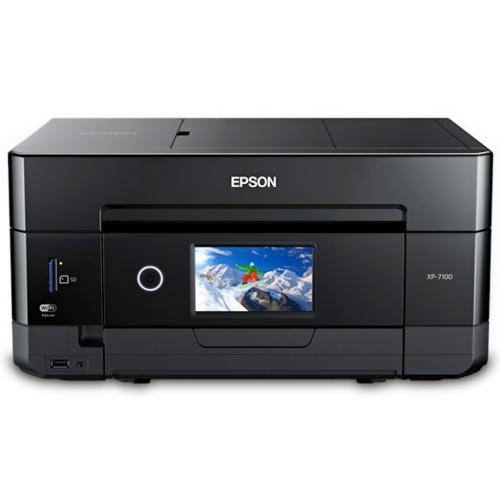
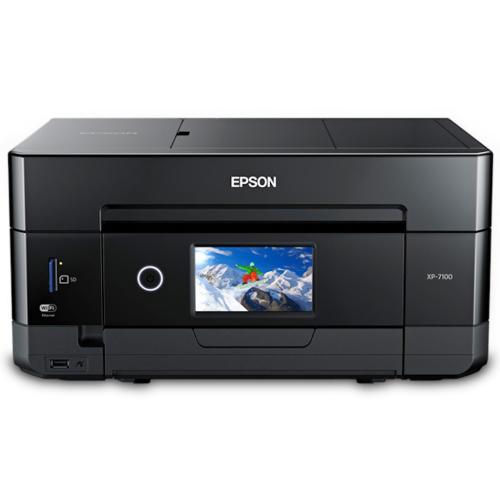
Epson C11CH03201D Expression Premium Xp-7100 Aio Prtr Demo Parts

In stock 0 Products

Model

Epson

$99,999.00
Quick View

Model

In stock 0 Products

Model

Epson

$99,999.00
Quick View

Model

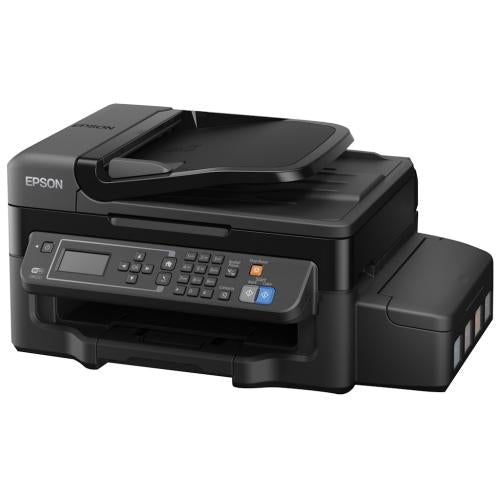
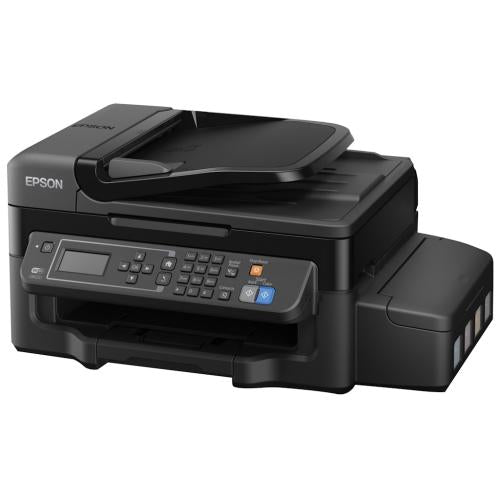
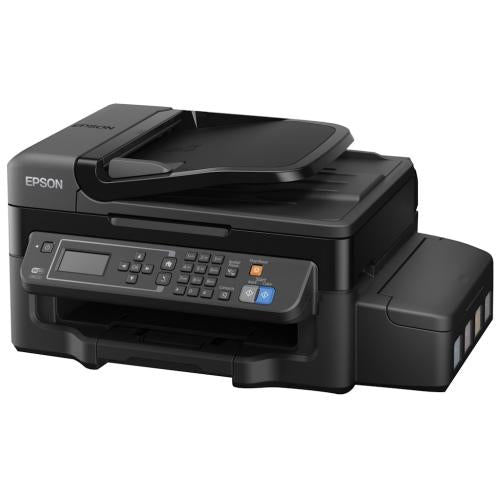
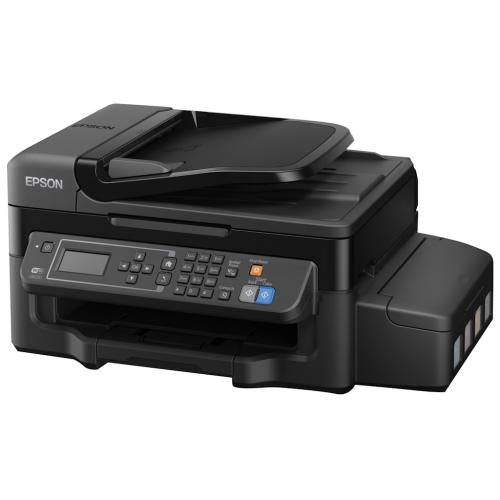
Epson C11CE90201 Workforce Et-4500 Aio Wifi Printer Parts

In stock 0 Products

Model

Epson

$99,999.00
Quick View

Model

In stock 0 Products

Model

Epson

$99,999.00
Quick View

Model

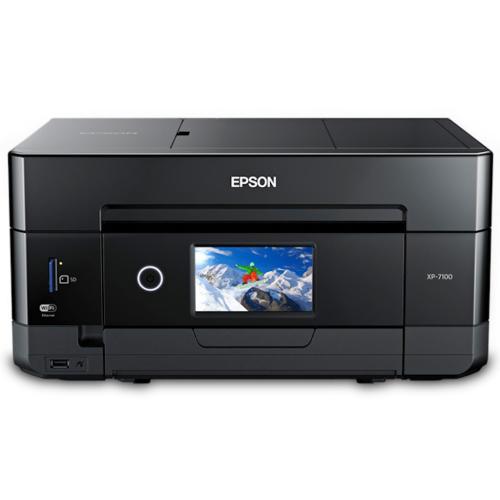
Epson C11CH03201 Expression Premium Xp-7100 Aio Printer Parts

In stock 0 Products

Model

Epson

$99,999.00
Quick View

Model

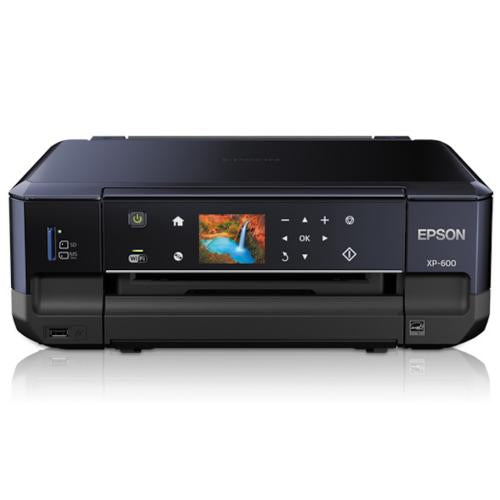
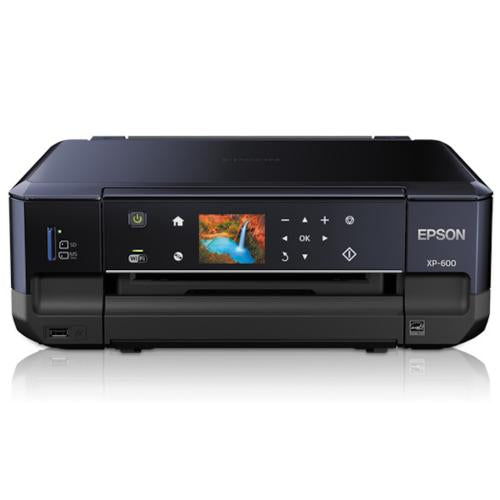
Epson C11CC47202 Expression Premium Xp-600 Ca Parts

In stock 0 Products

Model

Epson

$99,999.00
Quick View

Model

In stock 0 Products

Model

Epson

$99,999.00
Quick View

Model

Epson C11CH03201N Expression Premium Xp-7100 Printer Parts

In stock 0 Products

Model

Epson

$99,999.00
Quick View

Model

Epson C11CE90201C Et-4500 Aio Printer Special Edition Parts

In stock 0 Products

Model

Epson

$99,999.00
Quick View

Model

Epson C11CE90201V Workforce Et-4500 Aio Printer Amazon Parts

In stock 0 Products

Model

Epson

$99,999.00
Quick View

Model

In stock 0 Products

Model

Epson

$99,999.00
Quick View

Model

Epson C11CE90201N Workforce Et-4500 Printer Parts

In stock 0 Products

Model

Epson

$99,999.00
Quick View

Model

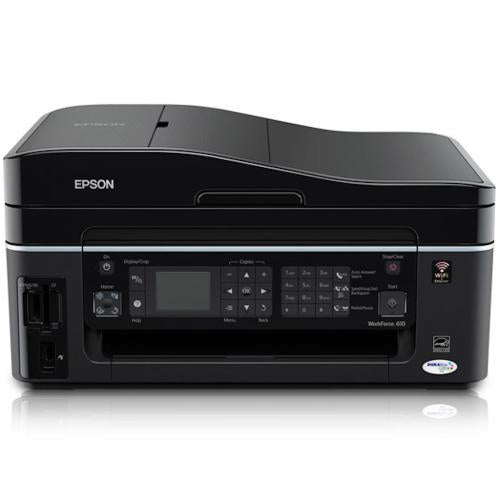
Epson C11CA50201 Workforce 610 Parts

In stock 0 Products

Model

Epson

$99,999.00
Quick View

Model

Epson C11CC98201V Workforce Wf-7610 Aio Printer Amazon Parts

In stock 0 Products

Model

Epson

$99,999.00
Quick View

Model

Epson C11CC47201N Expression Premium Xp-600 Refurb Printer Parts

In stock 0 Products

Model

Epson

$99,999.00
Quick View

Model

Epson C11CC47201D Expression Premium Xp-600 Demo Parts

In stock 0 Products

Model

Epson

$99,999.00
Quick View

Model

Epson C11CC47201 Expression Premium Xp-600 Us Parts

In stock 0 Products

Model

Epson

$99,999.00
Quick View

Part

2007-000120
$54.95 $71.44

In stock 0 Products

Quick View

In stock 0 Products

Part

Samsung

$54.95 $71.44
Quick View

Part

2007-000157
$5.85 $7.61

In stock 0 Products

Quick View

In stock 0 Products

Part

Dacor

$5.85 $7.61
Quick View

Part

2007-000238
$6.95 $9.05

In stock 0 Products

Quick View

In stock 0 Products

Part

Samsung

$6.95 $9.05
Quick View

Frequently Asked Questions

Quick answers for your replacement part needs

Where can I find genuine replacement parts for my all-in-one printer?

You can find high-quality replacement parts for your all-in-one printer right here on our website. We stock original components from leading brands such as HP, Canon, Epson, Brother, and more. Just enter your printer’s model number to browse compatible parts designed to restore full functionality and extend your printer’s life.

What types of all-in-one printer parts are available?

Our collection includes a wide range of parts to cover every repair need, including: Printheads and ink cartridges for sharp, clear prints Paper feed rollers and trays to ensure smooth operation Control panels and buttons for user interface repairs Scanning assemblies and glass plates for crisp scans Power supplies and cables to keep your printer running reliably Whether you're dealing with print issues, paper jams, or scanning errors, we’ve got the right parts to get your printer back to peak performance.

Are these printer parts compatible with my specific model?

Many of our printer parts are designed to fit a wide range of models from major brands. However, to ensure perfect compatibility, we recommend confirming your printer’s model number before placing an order. Our search tool and customer support team are here to assist you in finding the exact match.

What if I can’t find the printer part I need?

No worries—our team is here to help! If the part you're looking for isn’t listed, just contact us with your printer’s model number and a description of the part. We’ll search our inventory and supplier network to locate it for you. We’re committed to helping you get your printer working again.

Do you provide repair guides for all-in-one printer parts?

Yes! We offer a variety of helpful resources, including step-by-step instructions, how-to articles, and video tutorials. Whether you’re installing a new printhead or replacing a paper feed roller, our guides are designed to make repairs easy—even for beginners.

How can I track my printer parts order?

After placing your order, you’ll receive a confirmation email with a tracking link. This allows you to monitor your package in real-time—from our warehouse to your delivery address—so you’re always in the loop.

How fast is shipping for all-in-one printer parts?

Most orders are shipped within 1–2 business days. Standard delivery usually takes 3–7 business days, with expedited options available during checkout. You’ll receive tracking details as soon as your order ships.

Can I return printer parts if they’re not compatible?

Absolutely. If the part doesn’t fit your printer and is unused in its original packaging, you can return it within our designated return period. Our customer service team will help you with the return or exchange process—your satisfaction is our priority.

Can I update my shipping address after placing an order?

If you need to change your shipping address, please contact us right away with your order number and the updated address. We’ll make the change if the item hasn’t shipped yet. Once dispatched, address changes may not be possible.

How do I contact customer support for printer part help?

You can reach our knowledgeable support team by phone, email, or live chat. Whether you need help identifying a part, tracking your order, or performing a repair, we’re here to support you every step of the way.

Couldn’t find the answer to your question?

Your satisfaction matters. Let us know how we can assist with your repair journey.

Your Cart ( 0 items)

You currently have 0 items in your Cart

Return to shop
Menu

Compatible Models